• Check out the results of the Techtree Contest #19!
  • Listen to a special audio message from Bill Roper to the Hive Workshop community (Bill is a former Vice President of Blizzard Entertainment, Producer, Designer, Musician, Voice Actor) 🔗Click here to hear his message!
  • Read Evilhog's interview with Gregory Alper, the original composer of the music for WarCraft: Orcs & Humans 🔗Click here to read the full interview.
  • Create a void inspired texture for Warcraft 3 and enter Hive's 34th Texturing Contest: Void! Click here to enter!
  • The Hive's 22nd Icon Contest: Creep Abilities is now concluded, time to vote for your favourite set of icons! Click here to vote!

Photoshop Loading Screen Template

Level 23
Joined
Jan 1, 2009
Messages
1,622
Hi, I made a photoshop template for creating Loadingscreen quick & easy.

1. Download the .psd file from the attachments and open it in Photoshop

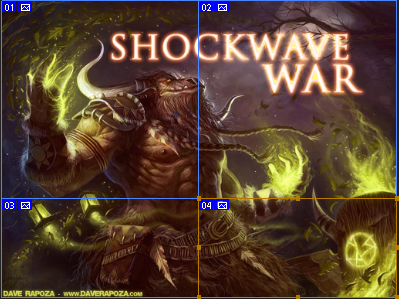
2. Insert your loadingscreen like so:
attachment.php


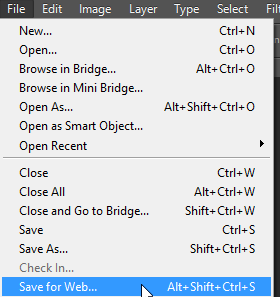
3. Use photoshop's "Save for Web" function:
attachment.php


Drag-Select all slices so there are no grey areas left:
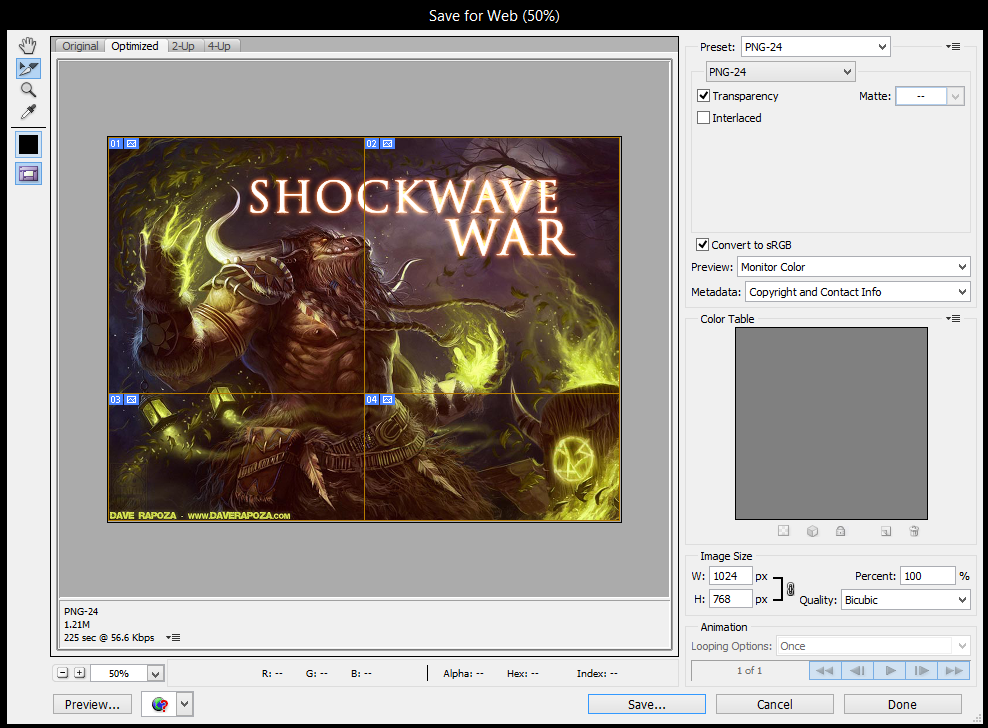
attachment.php


Press Save... and save with these settings to a folder of your choice:
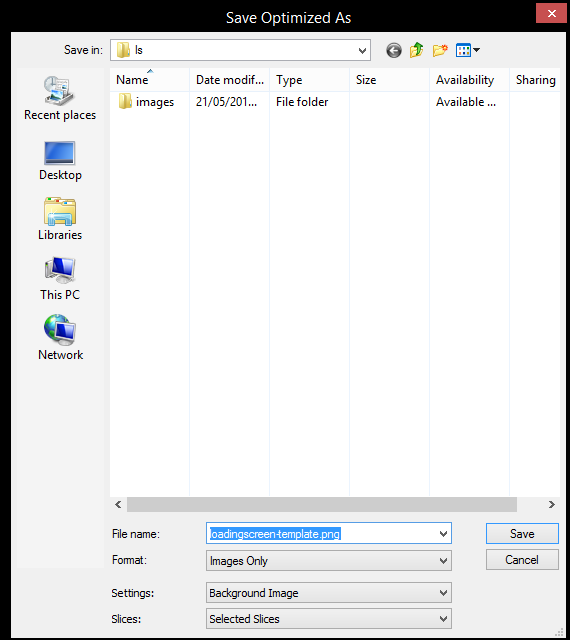
attachment.php


Your files will be inside an "images" folder inside of your chosen folder:
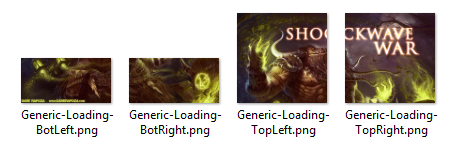
attachment.php


4. Convert the .png files to .blp by using your favourite converter (I used blplab-batch converter with these settings):
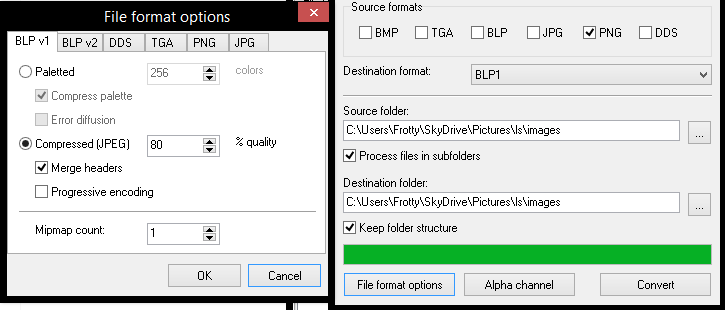
attachment.php


5. Import the files into your map using the import-editor. Replace war3mapImported\ with UI\Glues\Loading\Load-Generic\

attachment.php


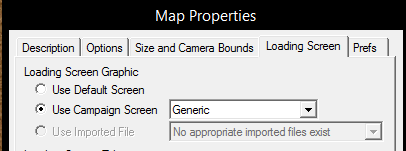
6. Set Loading Screen to Generic
attachment.php


And you're done!

Pros over the model-version:
  • No model file needed
  • Smaller filesize
  • Players don't need to press a key
 

Attachments

  • loadingscreen-template.psd
    loadingscreen-template.psd
    87.4 KB · Views: 477
  • 1.png
    1.png
    287.4 KB · Views: 1,668
  • 2.png
    2.png
    8.4 KB · Views: 1,454
  • 3.png
    3.png
    510.3 KB · Views: 1,509
  • 4.png
    4.png
    31.4 KB · Views: 1,447
  • 5.png
    5.png
    66.9 KB · Views: 1,387
  • 6.png
    6.png
    13.9 KB · Views: 1,470
  • 7.png
    7.png
    6.8 KB · Views: 1,332
  • 8.png
    8.png
    7.3 KB · Views: 1,375
Last edited by a moderator:
Pretty sure that would break backwards compatibility with older versions? If it even works.
As far as I am aware all versions of Warcraft III supported non power of 2 textures. This is because the support is entirely up to the underlying graphic driver, and all modern graphic cards (eg the trash one gets integrated into a processor or the lowest end budget card from 10 years ago) and drivers support non power of 2 textures.

Textures larger than 512 in any dimension are only supported by recent versions of Warcraft III. (EDIT: this was reverted in an even more recent patch as of 1.30)
 
Last edited:
As far as I am aware all versions of Warcraft III supported non power of 2 textures. This is because the support is entirely up to the underlying graphic driver, and all modern graphic cards (eg the trash one gets integrated into a processor or the lowest end budget card from 10 years ago) and drivers support non power of 2 textures.

Textures larger than 512 in any dimension are only supported by recent versions of Warcraft III.

I'm not talking about pot, but previous versions being rendered in 4:3 and stretched. So even if it would work, it wouldn't look good. (I would think)
perhaps with the custom model it could work?
 
What are the pixel sizes of those slices? I'd love to use this method but I do not have photoshop, so I'd need to chop the image manually.

Edit: Nevermind, Figured it out.
For those wondering:
The full image should be 1024 x 768
The top panels should be 512 x 512
The bottom panels should be 512 x 256
 
Last edited:
Back
Top