

This will help import file paths automatically. Once opened, a folder will be created ready for import, and depending on the mode you chose, it will add the correct file path.
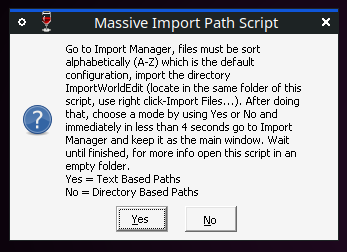
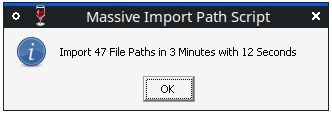
It should be noted that you should not use the computer while it is running (after choose mode and keep Import Manager as the main window).
The script:
Paste in a text editor and save as mips.vbs or any name but with the .vbs extension and then put in your folder with files to import and open it. All windows versions it's enabled for default up to version Windows 11
~some info
about the .html format of hiveworkshop works by taking the second part of every line with the following format
yourfile.ext => dir1\dir2\dir3\yourfile.ext
then the relative path that the script would take it will be
dir1\dir2\dir3\yourfile.ext
The directories can be 3 or any number inclusive of 0 directories. Note that it will use backslash \ and not slash / because a few resources on Hive have that slash error, you have to take that into account because if the script takes the wrong slash, it won't process it and will classify it as if there were no relative path. In that case of not finding a relative path in mode Text Based Paths the deafult action that will take the relative paths as only filename removing 'war3mapImported'
This script automatically moves all files located in the same folder of this script, as well as subdirectories, to the ImportWorldEdit folder, ready for import. If you select Text Based Paths it uses the paths from the files: paths.txt (one relative path per line) and readme.html (HiveWorkShop format only). If you select Directory Based Paths it uses the directory structure, with the root folder being the same as the one where this script is located. A special case is if you have files in the same folder (not within any of its subfolders) as this script; their relative path will be the same as their filename (including the extension), removing 'war3mapImported'. You can also do this if they are distributed across subfolders using Text Based Paths mode when paths.txt or readme.html doesn't exist in the folders or subfolders, as this is the default action in this mode when it can't find the relative path of a file. The folders without files will be deleted. No files are deleted, files with paths(paths.txt or readme.html) will be moved to the folder ScriptDepot.
If the script does not find relative path of a filename means that it did not find paths.txt or readme.html or is in mode Directory Based Paths and the filename is in the same folder of the script; and takes its relative paths as filename removing 'war3mapImported' the same as an relative path written only with backslash followed by the filename. Also in case of two file relative paths with the same filename the script will take relative paths of this file overwriting if necessary according to the line position, with the highest line number taking priority this case can occur in Text Based Paths.
It should be noted that you should not use the computer while it is running (after choose mode and keep Import Manager as the main window).
The script:
Code:
' mips by khopesh
Set objFSO = CreateObject("Scripting.FileSystemObject")
Set objShell = WScript.CreateObject("WScript.Shell")
Set objDic = CreateObject("Scripting.Dictionary")
Set objDicD = CreateObject("Scripting.Dictionary")
Set objHTML = CreateObject("htmlfile")
strPWD = objFSO.GetParentFolderName(WScript.ScriptFullName)
dim strFilesNames, ut, modeyes : totalFtoimport=0 : int2 = 1 : int3 = 1 : Const wfactor = 2 : Const wms = 50 : xx = wfactor * wms
strDestinationPath = strPWD & "\ImportWorldEdit" : strDestinationPath2 = strPWD & "\ScriptDepot"
extractFiles objFSO.GetFolder(strPWD)
eraseFolders objFSO.GetFolder(strPWD)
countFtoimport
Const infocard = "This script automatically moves all files located in the same folder of this script, as well as subdirectories, to the ImportWorldEdit folder, ready for import. If you select Text Based Paths it uses the paths from the files: paths.txt (one relative path per line) and readme.html (HiveWorkShop format only). If you select Directory Based Paths it uses the directory structure, with the root folder being the same as the one where this script is located. A special case is if you have files in the same folder (not within any of its subfolders) as this script; their relative path will be the same as their filename (including the extension), removing 'war3mapImported'. You can also do this if they are distributed across subfolders using Text Based Paths mode when paths.txt or readme.html doesn't exist in the folders or subfolders, as this is the default action in this mode when it can't find the relative path of a file. For questions and feedback, go hiveworkshop thread Massive Import Path Script"
message = "Go to Import Manager, files must be sort alphabetically (A-Z) which is the default configuration, import the directory ImportWorldEdit (locate in the same folder of this script, use right click-Import Files...). After doing that, choose a mode by using Yes or No and immediately in less than 4 seconds go to Import Manager and keep it as the main window. Wait until finished, for more info open this script in an empty folder." & vbCrLf & "Yes = Text Based Paths" & vbCrLf & "No = Directory Based Paths"
Const openF = "A paths.txt file has been created in the same folder of this script; you can choose one of the modes later by editing that file and run again the script in mode Text Based Paths. If run the script again without editing paths.txt in mode Text Based Paths the default config will be Directory Based Paths."
Const openF2 = "No Directory Based Paths structure found. If you left a pending execution that contained it, can be found in the folder ScriptDepot located in the same folder of this script. If so, edit it so that it only contains the relative paths of the mode Directory Based Paths and save it as paths.txt in the same folder of this script, finally run again the script in mode Text Based Paths"
Const title = "Massive Import Path Script"
If totalFtoimport > 0 Then
    result = MsgBox(message, vbYesNo + vbQuestion, title)
    If result = vbYes Then
        Set objDicD = Nothing
        modeyes = True
        savePaths
        WScript.Sleep 4000
        StartTime = Timer()
        objShell.SendKeys "{END}"
            for g=1 to totalFtoimport
                procAll
            next
        EndTime = Timer()
        If EndTime < StartTime Then EndTime = EndTime + 86400
        ElapsedSeconds = EndTime - StartTime
        logt = elapseLog(ElapsedSeconds)
        MsgBox "Import " & CStr(totalFtoimport) & " File Path" & ut & " in " & logt, vbOkonly + vbInformation, title
    ElseIf result = vbNo Then
        If objDicD.Count > 0 Then
            Set objDic = Nothing
            modeyes = False
            savePaths
            WScript.Sleep 4000
            StartTime = Timer()
            objShell.SendKeys "{END}"
                for g=1 to totalFtoimport
                    procAll
                next
            EndTime = Timer()
            If EndTime < StartTime Then EndTime = EndTime + 86400
            logt = elapseLog(ElapsedSeconds)
            MsgBox "Import " & CStr(totalFtoimport) & " File Path" & ut & " in " & logt, vbOkonly + vbInformation, title
        Else
            MsgBox openF2, vbOkonly + vbCritical, title
            modeyes = False
        End If
    End If
    If IsEmpty(modeyes) Then
        savePaths
        MsgBox openF, vbOkonly + vbCritical, title
    End If
End If
If totalFtoimport = 0 Then MsgBox infocard, vbOkonly + vbExclamation, title
Set objHTML = Nothing
Set objFSO = Nothing
Set objShell = Nothing
If Not objDic Is Nothing Then Set objDic = Nothing
If Not objDicD Is Nothing Then Set objDicD = Nothing

Sub countFtoimport()
    If objFSO.FolderExists(strDestinationPath) Then
        For Each file In objFSO.GetFolder(strDestinationPath).Files
            dirFile2 = file.Path
            base3 = objFSO.GetBaseName(dirFile2)
            If Left(base3, 2) = "!!" Then totalFtoimport = totalFtoimport +1
        Next
        If totalFtoimport = 1 Then ut = "" Else ut ="s"
    End If
End Sub

Sub extractFiles(Folder)
    For Each file In Folder.Files
        dirFile = file.Path
        pathCurFile = objFSO.GetParentFolderName(dirFile)
        base = objFSO.GetBaseName(dirFile)
        ext = objFSO.GetExtensionName(dirFile)
        ext = LCase(ext)
        newPath = strDestinationPath & "\!!" & base & "." & ext
        If objFSO.FileExists(newPath) Then
            If Not objFSO.FolderExists(strDestinationPath) Then objFSO.CreateFolder strDestinationPath
            int = 1
            str = CStr(int)
            rbase = base & "-RepeatFile-" & str
            newPath = strDestinationPath & "\!!" & rbase & "." & ext
            If objFSO.FileExists(newPath) Then
                Do While objFSO.FileExists(newPath)
                    int = int + 1
                    str = CStr(int)
                    rbase = base & "-RepeatFile-" & str
                    newPath = strDestinationPath & "\!!" & rbase & "." & ext
                Loop
            End If
            c1 = Split(dirFile, strPWD)
            c2 = Mid(c1(1), 2)
            objDicD.Add rbase & "." & ext, c2
            objFSO.MoveFile dirFile, newPath
        ElseIf dirFile <> WScript.ScriptFullName And LCase(base) & "." & ext <> "paths.txt" And LCase(base) & "." & ext <> "readme.html" Then
            If Not objFSO.FolderExists(strDestinationPath) Then objFSO.CreateFolder strDestinationPath
            If strPWD = pathCurFile Then
                r = base & "." & ext
                objDicD.Add r, "\" & r
            Else
                c1 = Split(dirFile, strPWD)
                c2 = Mid(c1(1), 2)
                r = base & "." & ext
                objDicD.Add r, c2
            End If
            objFSO.MoveFile dirFile, newPath
        ElseIf LCase(base) & "." & ext = "paths.txt" Then
            textBased(dirFile)
            str2 = CStr(int2)
            If Not objFSO.FolderExists(strDestinationPath2) Then objFSO.CreateFolder strDestinationPath2
            fPath = strDestinationPath2 & "\paths-" & str2 & ".txt"
            If objFSO.FileExists(fPath) Then
                Do While objFSO.FileExists(fPath)
                    int2 = int2 + 1
                    str2 = CStr(int2)
                    fPath = strDestinationPath2 & "\paths-" & str2 & ".txt"
                Loop
            Else
                int2 = int2 + 1
            End If
            objFSO.MoveFile dirFile, fPath
        ElseIf LCase(base) & "." & ext = "readme.html" Then
            textBased(dirFile)
            str3 = CStr(int3)
            If Not objFSO.FolderExists(strDestinationPath2) Then objFSO.CreateFolder strDestinationPath2
            fPath = strDestinationPath2 & "\readme-" & str3 & ".html"
            If objFSO.FileExists(fPath) Then
                Do While objFSO.FileExists(fPath)
                    int3 = int3 + 1
                    str3 = CStr(int3)
                    fPath = strDestinationPath2 & "\readme-" & str3 & ".html"
                Loop
            Else
                int3 = int3 + 1
            End If
            objFSO.MoveFile dirFile, fPath
        End If
    Next
    For Each Subfolder in Folder.SubFolders
        If Subfolder.Path <> strDestinationPath And Subfolder.Path <> strDestinationPath2 Then extractFiles Subfolder
    Next
End Sub

Sub eraseFolders(Folder)
    If Folder.SubFolders.Count > 0 Then
    For Each Subfolder in Folder.SubFolders
        eraseFolders Subfolder
    Next
    End If
    If Folder.Files.Count = 0 And Folder.SubFolders.Count = 0 Then objFSO.DeleteFolder Folder.Path, True
End Sub

Sub savePaths()
    Const ForAppending = 8
    If modeyes = True Then
        If objDic.Count > 0 Then
            Set ffile = objFSO.OpenTextFile(strPWD & "\paths.txt", ForAppending, True)
            For Each key In objDic.Keys
                ffile.WriteLine(objDic.Item(key))
            Next
            ffile.Close
            Set ffile = Nothing
        End If
    End If
    If ( Not IsEmpty(modeyes) ) And modeyes = False Then
        If objDicD.Count > 0 Then
            Set ffile = objFSO.OpenTextFile(strPWD & "\paths.txt", ForAppending, True)
            For Each key In objDicD.Keys
                ffile.WriteLine(objDicD.Item(key))
            Next
            ffile.Close
            Set ffile = Nothing
        End If
    End If
    If IsEmpty(modeyes) Then
        Set ffile = objFSO.OpenTextFile(strPWD & "\paths.txt", ForAppending, True)
        ffile.WriteLine(">>>>Text Based Paths<<<< If you want this mode, delete the other mode and its other relative paths. Then save this file and run the script in mode Text Based Paths")
        ffile.WriteLine("If this does not have relative path of a filename means that it did not find paths.txt or readme.html and takes its relative paths as filename removing 'war3mapImported' the same as an relative path written only with backslash followed by the filename. Also in case of two file relative paths with the same filename the script will take relative paths of this file overwriting if necessary according to the line position, with the highest line number taking priority.")
        For Each key In objDic.Keys
            ffile.WriteLine(objDic.Item(key))
        Next
        ffile.WriteLine(">>>>Directory Based Paths<<<< If you want this mode, delete the other mode and its other relative paths. Then save this file and run the script in mode Text Based Paths")
        ffile.WriteLine("If this does not have relative path of a filename means that his relative path will be equal to filename removing 'war3mapImported' the same as an relative path written only with backslash followed by the filename. If you don't change this file and run the script in mode Text Based Paths, the script will take relative paths of this file overwriting if necessary according to the line position, with the highest line number taking priority, in this case if you want an relative path without a folder (filename only) overwrite other with different path in a previous line then add in a new line: backslash followed by the filename.")
        For Each key In objDicD.Keys
            ffile.WriteLine(objDicD.Item(key))
        Next
        ffile.Close
        Set ffile = Nothing
    End If
End Sub

Sub textBased(textFile)
    Const ForReading = 1
    Set inputFile = objFSO.OpenTextFile(textFile, ForReading)
    pathCurFile2 = objFSO.GetParentFolderName(textFile)
    base2 = objFSO.GetBaseName(textFile)
    base2 = LCase(base2)
    ext2 = objFSO.GetExtensionName(textFile)
    ext2 = LCase(ext2)
    If base2 & "." & ext2 = "paths.txt" Then
        Do Until inputFile.AtEndOfStream
            lineContent = inputFile.ReadLine()
            If lineContent <> "" Then
                chunks2 = Split(lineContent, "\")
                If UBound(chunks2) > 0 Then
                    strFile = chunks2(UBound(chunks2))
                    If strFile <> "" Then
                        If objDic.Exists(strFile) Then objDic.Item(strFile) = lineContent Else objDic.Add strFile, lineContent
                    End If
                End If
            End If
        Loop
    ElseIf base2 & "." & ext2 = "readme.html" Then
        Do Until inputFile.AtEndOfStream
            lineContent = inputFile.ReadLine()
            If lineContent <> "" Then
                chunks2 = Split(lineContent, " => ")
                If IsArray(chunks2) And UBound(chunks2) > 0 Then
                    strFile = chunks2(UBound(chunks2))
                    chunks3 = Split(strFile, "<")
                    strFileFull = chunks3(LBound(chunks3))
                    chunks4 = Split(strFileFull, "\")
                    strFile = chunks4(UBound(chunks4))
                    If strFile <> "" Then
                        If objDic.Exists(strFile) Then objDic.Item(strFile) = strFileFull Else objDic.Add strFile, strFileFull
                    End If
                End If
            End If
        Loop
    End If
    inputFile.Close
    Set inputFile = Nothing
End Sub

Sub setPath()
    clipboard = objHTML.ParentWindow.ClipboardData.GetData("text")
    chunks = Split(clipboard, "!!")
    fileImported = chunks(UBound(chunks))
    If modeyes = True Then
        If objDic.Exists(fileImported) Then strFilesNames = objDic.Item(fileImported) Else strFilesNames = fileImported
    Else
           If objDicD.Exists(fileImported) Then strFilesNames = objDicD.Item(fileImported) Else strFilesNames = fileImported
    End If
End Sub

Sub procAll()
    WScript.Sleep xx
    objShell.SendKeys "{HOME}"
    WScript.Sleep xx
    objShell.SendKeys "{Enter}"
    WScript.Sleep xx * 6
    objShell.SendKeys "%u"
    WScript.Sleep xx
    objShell.SendKeys "+{TAB}"
    WScript.Sleep xx
    objShell.SendKeys "^c"
    WScript.Sleep xx
    setPath
    WScript.Sleep xx
    objShell.SendKeys "{HOME}"
    WScript.Sleep xx
    objShell.SendKeys "^{RIGHT}"
    WScript.Sleep xx
    objShell.SendKeys "+{RIGHT}"
    WScript.Sleep xx
    objShell.SendKeys "^c"
    WScript.Sleep xx
    objShell.SendKeys "{BS}"
    WScript.Sleep xx
    objShell.SendKeys "{RIGHT}"
    WScript.Sleep xx
    objShell.SendKeys "{RIGHT}"
    WScript.Sleep xx
    objShell.SendKeys "+{HOME}"
    WScript.Sleep xx
    objShell.SendKeys "{BS}"
    prepath = Split(strFilesNames, "\")
    lim = CInt(UBound(prepath))
    lim = lim - 1
    If lim > -1 Then
        For w = 0 To lim
            keysto = CStr(prepath(w))
            WScript.Sleep xx * 5
            objShell.SendKeys keysto, True
            WScript.Sleep xx * 5
            objShell.SendKeys "^v"
        next
    End If
    WScript.Sleep xx
    objShell.SendKeys "{Enter}"
    WScript.Sleep xx * 6
End Sub

Function elapseLog(dd)
    secs = Int(dd)
    min = Int(secs / 60)
    sec = secs Mod 60
    If min = 0 Then strmin = ""
    If min = 1 Then strmin = "1 Minute with "
    If min > 1 Then strmin = CStr(min) & " Minutes with "
    If sec = 0 Then strsec = ""
    If sec = 0 And min > 0 Then strmin = Left(strmin, Len(strmin) - 6)
    If sec = 1 Then strsec = "1 Second"
    If sec > 1 Then strsec = CStr(sec) & " Seconds"
    elapseLog = strmin & strsec
End Function- Press Win + I to open Settings.
- Go to System > Optional Features.
- Click View features at the top.
- In the search box, type VBScript.
- Select VBScript from the list and click Next.
- Click Install and wait for the process to complete.
- Restart your PC to apply changes.
run in terminal
and then you open .vbs files directly
Code:
WINEARCH=win32 WINEPREFIX="$HOME/.wine32vbs" winetricks -q wsh57 vcrun6 ie8 vb6run && t="$HOME/.local/share/applications/vbsWINE.desktop" ; printf '[Desktop Entry]\nType=Application\nName=Hiveworkshop Script\nMimeType=text/vbscript;\nExec=env WINEPREFIX="%s/.wine32vbs" wine start /ProgIDOpen "VBSFile" %%f\nIcon=like2x.png\n' "$HOME" > "$t" ; chmod +x "$t" ; wget -q -N -P "$HOME/.local/share/icons" https://www.hiveworkshop.com/data/assets/reactions/like2x.png ; xdg-mime default vbsWINE.desktop text/vbscriptabout the .html format of hiveworkshop works by taking the second part of every line with the following format
yourfile.ext => dir1\dir2\dir3\yourfile.ext
then the relative path that the script would take it will be
dir1\dir2\dir3\yourfile.ext
The directories can be 3 or any number inclusive of 0 directories. Note that it will use backslash \ and not slash / because a few resources on Hive have that slash error, you have to take that into account because if the script takes the wrong slash, it won't process it and will classify it as if there were no relative path. In that case of not finding a relative path in mode Text Based Paths the deafult action that will take the relative paths as only filename removing 'war3mapImported'
Last edited:


