• Listen to a special audio message from Bill Roper to the Hive Workshop community (Bill is a former Vice President of Blizzard Entertainment, Producer, Designer, Musician, Voice Actor) 🔗Click here to hear his message!
  • Read Evilhog's interview with Gregory Alper, the original composer of the music for WarCraft: Orcs & Humans 🔗Click here to read the full interview.
  • The Hive's 22nd Icon Contest: Creep Abilities is now concluded, time to vote for your favourite set of icons! Click here to vote!
  • ✅ The POLL for Hive's Texturing Contest #34 is OPEN! Vote for the TOP 3 SKINS! 🔗Click here to cast your vote!
  • ✅ The POLL for Hive's Techtree Contest #20 is OPEN! Vote for the TOP 3 FACTIONS! 🔗Click here to cast your vote!

WoW-Converter: export all WoW models to Warcraft 3

This bundle is marked as pending. It has not been reviewed by a staff member yet.
Do you want to add some famous World of Warcraft characters into your map but cannot find their model anywhere?
Are you a model ripper but tired with manual steps when extracting models like assigning textures to geosets, renaming animations, etc..., and just want to get straight to the fun parts?

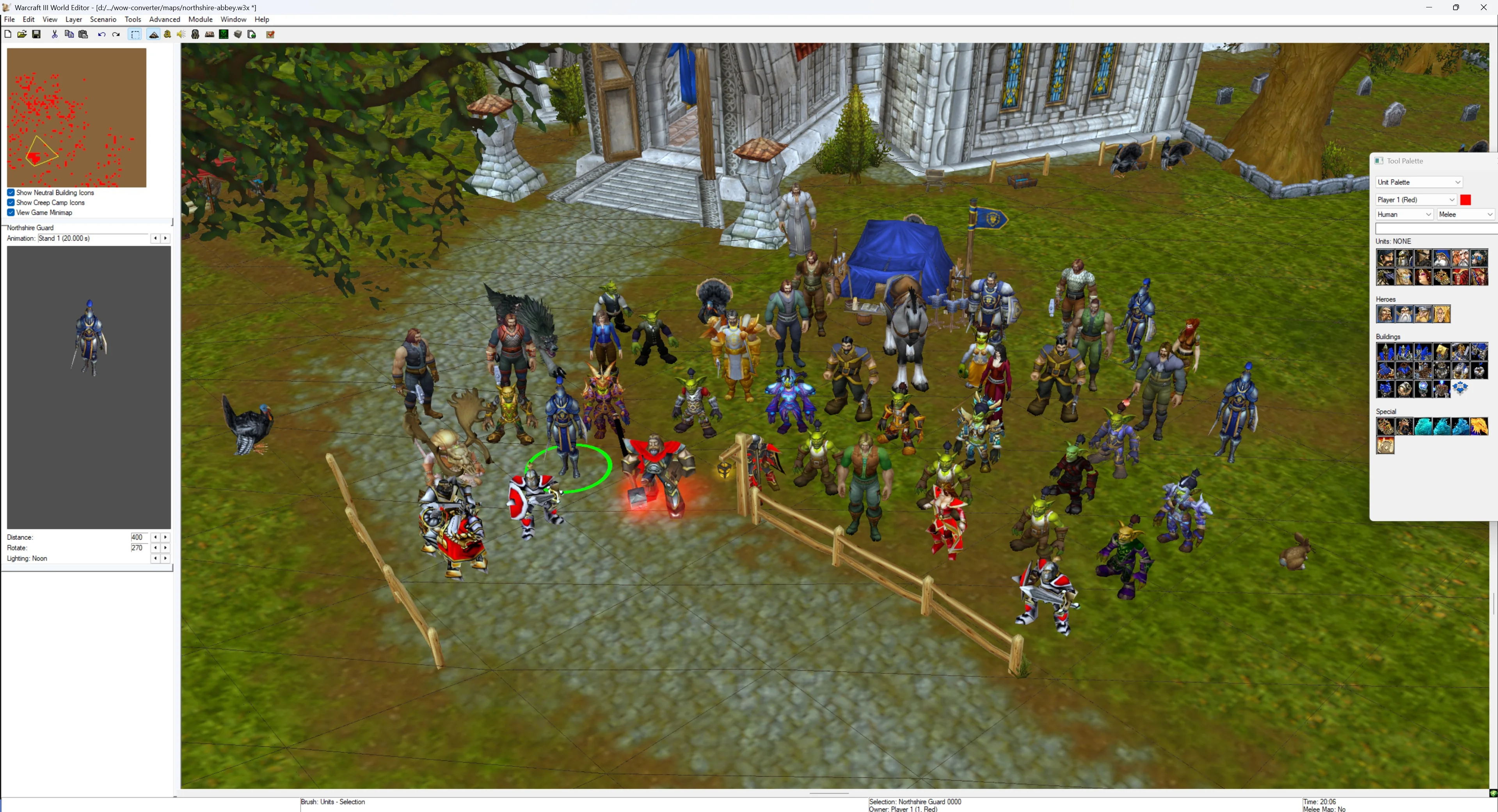
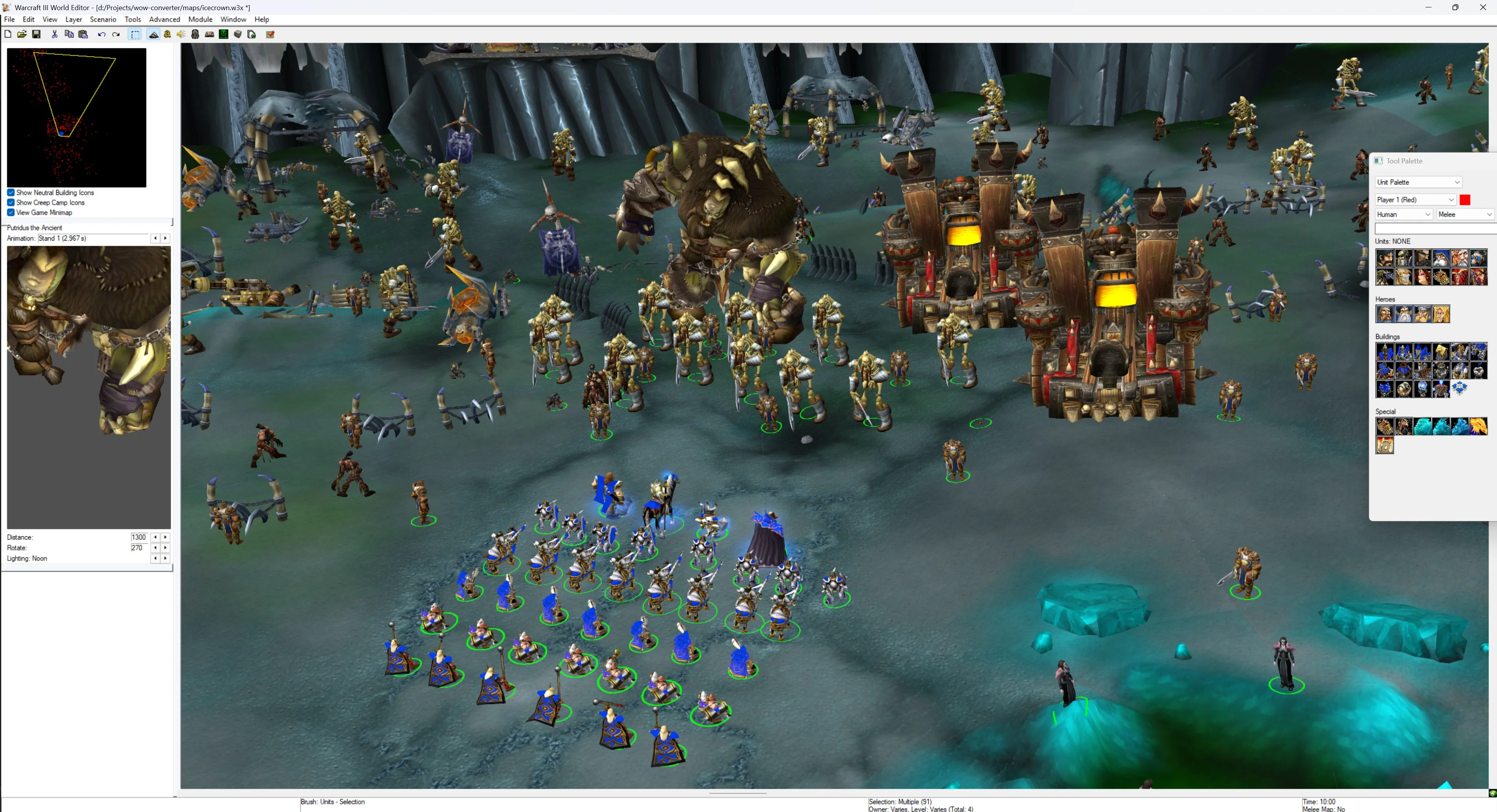
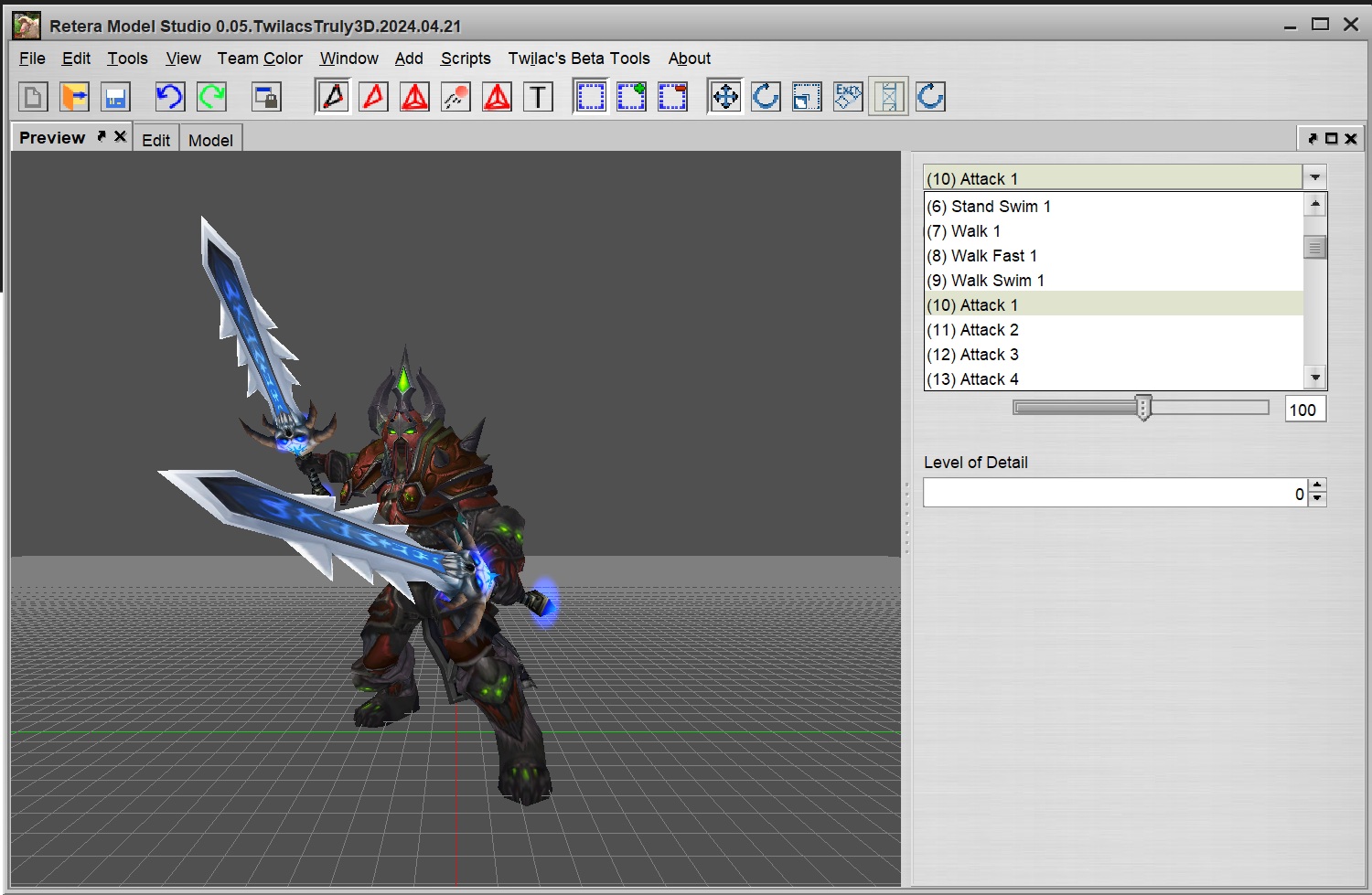
Then this innovative tool is for you. Full list of features below. Here are some screenshots demonstrating its capability:


341563-99881967bd87de700f6e4e0d1327c111.webp

341564-32c79c49c9fa0238df9c8fc8da4ffbfb.webp

1757876883775-png.549229
1757876921846-png.549230

1757877046320-png.549231
1757877190851-png.549232

1757878420830-png.549234
1757878600627-png.549235

1757878683811-png.549236
1757878819665-png.549237

341702-e6794ee2b04efbd1c120315c915c354d.jpg
342428-3e8723a844103d0fbe7a9c53478391e9.jpg


347575-55b84bab2e58571dce7bbd01e11f6b4f.jpg

341565-a08a67bead79e1ec54a64e5fb286d044.jpg


Amazing, right? This power is available to everyone now.

Visit wow.quangdel.com and give it a try!

This is a hosted web version so no installation required. Alternatively you can download and run the tool locally. Full instructions and open-source code: GitHub - pqhuy98/wow-converter.

Features
  • Browse and export any WoW models (e.g. creatures, doodads, ability effects...) to Warcraft 3's MDX/MDL.
  • Export character models based on Wowhead URL (NPCs, dressing room, items, objects...).
  • Customize your character: attach items (e.g. weapons) and mount to the model's body.
  • The tool automatically does all required steps:
    • Filter relevant WoW animations, and renames them to Warcraft 3's standards.
    • Assign textures, materials, texture anims, , collision boxes...
    • Set material filter mode and flags like "TwoSided", "Unfogged", "NoDepthTest", "NoDepthSet" (except for WMO models).
    • Approximately down-port WoW's particle emitters, ribbon emitters, lights to meet Warcraft 3's limitations.
  • Various optimizations: remove used nodes/vertices/keyframes, resize texture images...
  • Preserves fidelity when export highly complex WoW models to WC3's SD 800 legacy format.
  • Browse and export WoW icons into WC3 active/passive/autocast... icons with optional AI upscaling.

If you encounter any bugs, please report and I will try to fix them. Some missing features to be added or fixed later:
  • Cannot fully export certain characters, e.g. dracthyrs...

Installation

1. Get the tools

Download from this Hive post or from Releases · pqhuy98/wow-converter and extract it. You will see the two main files among many other files:

2. Start wow.export.exe

This is my fork of Kruithne's GitHub - Kruithne/wow.export: 📦 wow.export is the number one export toolkit for World of Warcraft. with the required enhanced capabilities. You will need to keep it open.
  • Open wow.export.exe. Select "Open Local Installation" and your local WoW installation, or "Use Blizzard CDN" if you don't have one. Wait for it to load.
341573-495a0cb8038ed94c90342386a46a76de.jpg


3. Start wow-converter
  • Run wow-converter.exe. A command line window will open displaying all app messages.
  • Wait for the message:
341574-03dd0c346ca5acf42d1ec8e6e90fd0e9.jpg


4. Export your model
  • Open in your browser. It is exactly the same app hosted on Huy's wow-converter
  • Exported assets appear in the exported-assets directory inside the folder where you extracted the app. This is more convenient than the hosted version because the exported files are in your computer, no need to download and extract ZIPs.

Change logs

2025 December 21
  • Add texture mipmap.
  • SD 800 models no longer have all materials auto-marked as Unshaded.
  • Fix the auto-generated camera in WMO models causing issue in Reteras Model Studio.

2025 December 7
  • Fix the wowhead dressing room texture issues that @WanSaweR and @nyghtfury reported above.
  • Now the tool is able to export all animations that were previously missing.
  • The tool now automatically recomputes geoset normals. In practice, this fixes some weird shading issues of cloaks.

2025 November 10
  • Add new UI page to browse wow textures. If the texture is a wow icon then the tool can export it to WC3-ready icon BLP files. Example:
    • Deathknight frost icons: Huy's wow-converter with WC3 BTN/PAS/... frame overlays.
    • This allows exporting multiple icons at once, you can select which frame variants (BTN/PAS/ATC...) and border styles (Reforged vs Classics). This works similar to Reforgerator v1.2.0 - Icon Tool. Thank you @Makkad for your open source project GitHub - makkad0/Reforgerator: Batch image processor for War3 icons with GUI & CLI. that I used as code reference for applying WC3 border overlays.
    • Automatically includes the icon's disabled version DISBTN/DISPAS/DISATC... All icon files are saved to the correct WC3 path, e.g. exported-assets\ReplaceableTextures\CommandButtons\BTNdeathwing.blp
    • Optionally the tool can upscale small icons into higher resolution (128px/256px) with a local AI upscaler (Upscayl - AI Image Upscaler) to hopefully fit with Classic 2.0 icons (128px) or Reforged (256px).
    • You can customize output name of each icon file before exporting.
    • Overall this feature makes adding WoW icons into your map incredibly easy, clean, and fast.
  • Browse pages (model and texture) can now be shared by copy-paste the URL e.g. Baby fox model, Deathknight icon, search results for "illidan" models...

2025 November 8
  • Fix a bug with Material's Layer in SD models having unexpected HD flag "Unlit".
  • Now automatically add "Death" animation if original model misses it. During "Death" animation, the model is hidden by resizing to 0.
  • Better animation naming for visual effect models, many of them now have correct "Birth", "Stand", "Death" animations that was previously named "Cinematic Hold/Decay".

2025 October 31
  • Use orc upright model if wowhead URL says so.
  • WMO's filter modes and textures are now fully converted correctly.
  • Fix bug with SD 800 models having incorrect texture animations keyframes.

2025 October 6
  • Fix an issue with SD800 models don't have animation sequences ordered by increasingly intervals. This causes Hive's model checker reports severe warnings on those SD 800 models.
  • wow.export now has updates and improvements from the official Kruithne's wow.export latest's 0.2.2 release.
  • Now models' portrait cameras uses true WoW's portrait camera instead of previously just guesses works. This makes portrait of many models significantly better.
  • Added a new tab to browse WoW maps. I intend this tab to later on allows exporting WoW map tiles into WC3 map with all terrains and doodads. E.g like this template map: WoW's Scarlet Enclave - Template
  • Some wow-converter's web UI improvements.

2025 September 14
  • Allow exporting character with customizable Mount model. Currently the model plays only attack and death animations of the mount. In a future update I will programmatically combine character attack animations with mount's animations.
  • Now support collection-based character customization, i.e. Demon Hunter's horns, Earthen's body gems, Mechagnome's gadgets...
  • Dressing room conversion can now export weapon's visual effects on a best-effort basis. Example: Executioner weapon effect - result: Huy's wow-converter
  • Add "Browse Models" tab to easily search and browse all WoW model assets (e.g. creatures, doodads, spell effects...). Visit wow.quangdel.com/browse or the same URL path locally.
  • Several bug fixes related to particles that allow exporting a greater amount of spell effects. Note: particle conversion is not always perfect but best effort, due to WC3 doesn't support as many graphic shaders as WoW.
  • Other bug fixes and UI improvements:
    • Fix missing geosets in some character races like Undead' arm/face or Dwarf's beard.
    • Add attack options Bow, Gun, Thrown
    • Now the tool can automatically detect suitable attack options based on given weapons.
    • No longer needs to change file input type (wowhead/local/displayID), the tool now can auto-detect input type based on pasted text.
    • Texture PNG->BLP conversion is now significantly faster by utilizing all CPU cores.
    • Correct in-game Portrait by cloning Stand anims into "Portrait" anims.
    • Improved keyframe optimization to give smaller model size and fix a very rare bug.
    • Add a UI button to clean up everything inside export-assets folder.
    • Various improvements to web model viewer and "export in progress" loader.

2025 September 2
  • Add dressing room feature, 1st version. You can use wowhead URLs containing "/dressing-room#..." from either creating your own character from Dressing Room - World of Warcraft or visit any Wowhead Outfits and open its Dressing Room.
  • This is the 1st dressing room version, so there are some limitations:
    • These are not yet supported: dressing room mount, additional selectable weapon visual effects, individual shoulder transmog, Orc upright models...
    • Rarely there will be incorrect texture applied to the base body.
    • Dracthyr characters will not convert correctly.
    • If you get the error "Input file contains unsupported image format", it means there is an issue with the dressing room URL or conflict with your wow installation.
      • Make sure the dressing room URL is correct and "final" by open it in a completely new browser tab, then copy the URL again from the browser's URL bar. Some old-format dressing room URL will turn into new format supported by the tool after you do so.
      • Or you might be using URL of an older expansion e.g. /mop-classic/dressing-room#... while having wow.export pointing to Retail WoW.
      • The last resort is to re-draft the character from another working dressing room URL.
    • Some models will have visual effects but not moving, this is due to WoW's UV2 map is not portable to WC3's single UV map.
  • HD->SD conversion algorithm is no longer experimental, now it is very powerful being able to almost perfectly convert high complexity HD WoW models into SD. It is better than all open source HD->SD conversion implementations I have seen, e.g the ones in RMS/TRMS.
  • The tool can now export mounts and game objects, for example:
  • Significantly more powerful particle emitters conversion.
  • Significantly more accurate geosets selection, e.g. human female no longer always has the extra hair geoset.
  • Added an optimization option to automatically resize output textures to smaller than 1024/512/256px.
  • Some UI/UX improvements and bug fixes.


2025 August 25
  • Fix all bugs related to attachments. E.g. blood elf models can now equip weapons. Weapons equipped on attachment points like "Sheath Main Hand" or "Sheath Offhand" now works correctly.
  • Fix a vast amount of bugs related to particle emitters, geoset anims, WoW replaceable textures missing.
  • When providing a classic wowhead URL, the tool will try to export the classic model if it still exists in WoW retail game files. By changing wow.export's wow installation to Classic (MOP) or Classic Era, it will always be able to find classic models.
  • Add ear geosets that were previously missing to all models.
  • Add support for collection-based equipment. Example Rokhan above: Huy's wow-converter


2025 August 21
  • Fix bug that materials with multiple layers didn't show 2nd glow textures correctly.
  • Fix bug that texture anims are incorrect.
  • Fix UI bug that WMO models couldn't be exported easily.

FAQ

"I cannot run the tool locally. After pressing the Export button, nothing happens."
  • Some European people during the alpha test reported such issue. The root cause was Blizzard CDN blocking their IP address, prevents wow.export tool retrieving necessary Blizzard data. If Blizzard CDN blocks your IP address, you will need to use VPN to a different country.
"How does it work internally?"
  • For exporting NPC models, wow-converter.exe reads your Wowhead URLs to understand what the NPC consists of (race, gender, customizations like beards..., equipped items). Then it calls wow.export.exe to pull data from your WoW local installation and transform them to OBJ/PNG/JSON files. Then wow-converter.exe reads those exported files, and combine them into the final MDX model file with textures.
  • As you have noticed, the tool is capable to exporting a whole WoW map with terrains and doodads and preplaced units. However I haven't build a user-friendly UI for this yet.
"I have an idea for a great feature!"

Credits
Contents

WoW-Converter: export WoW NPCs to Warcraft 3 (Binary)

Anyone else having trouble with the textures? They just won't load and I had everything imported in the asset manager (also changed full paths). The model is from Bloodlord Mandokir.
 

Attachments

  • nakedtroll.png
    nakedtroll.png
    4.2 MB · Views: 160
Anyone else having trouble with the textures? They just won't load and I had everything imported in the asset manager (also changed full paths). The model is from Bloodlord Mandokir.
Did you change the texture path inside the model?
I would recommend you saving your map as a directory, then simply copy-paste the whole zip's content into your map folder. No need to rename anything.
 
The texture path must be exactly the same as its relative path in the zip file. E.g. "wow/ab/def/xyz.blp". You can see it in the website's export output, or open the model with Retera Model Studio and check texture path field.

Also I see your map is still a single file, you need to "save as" and choose directory option to turn it into a directory structure. Then copy the model zip contents into the directory. Allows you to mass-import many assets without touching the crappy UI of asset manager.
 
The texture path must be exactly the same as its relative path in the zip file. E.g. "wow/ab/def/xyz.blp". You can see it in the website's export output, or open the model with Retera Model Studio and check texture path field.

Also I see your map is still a single file, you need to "save as" and choose directory option to turn it into a directory structure. Then copy the model zip contents into the directory. Allows you to mass-import many assets without touching the crappy UI of asset manager.
Thanks! I got it to work. Look at that handsome fellow!
1753790900068.png
 
Anyone else having trouble with the textures? They just won't load and I had everything imported in the asset manager (also changed full paths). The model is from Bloodlord Mandokir.

Here are some screenshots:

Save map as a folder (World Editor > File > Save Map As...):

1753790960652.png


It will save the map as a folder named "XXX.w3x". Put the model files in the map folder:


1753790985101.png


Save the map again so that import list is updated. Result:

1753791057411.png


What asset manager shows:

1753791116442.png
 
Last edited:
Would be cool if it could be expanded to Doodads/Environmental elements as well.
That’s possible with the tool. You just have to change the source from Wowhead link to Local.

Then select the doodad/wmo/m2 or whatever you want to export and select export as OBJ.

Here is an example : world\expansion08\doodads\maw\9maw_skyscene_torghastraid01.obj


Works with base models as well. But make sure the model is exported first.
 
That’s possible with the tool. You just have to change the source from Wowhead link to Local.

Then select the doodad/wmo/m2 or whatever you want to export and select export as OBJ.

Here is an example : world\expansion08\doodads\maw\9maw_skyscene_torghastraid01.obj


Works with base models as well. But make sure the model is exported first.
But you need to have WoW installed?
 
Works like a charm and comes very in handy. Incredibly useful tool that will hopefully mostly replace those discord servers with WoW assets floating around. You mentioned that a function of exporting custom characters using wowhead dressing room is WiP. I highly anticipate that :].
 
Okey but I guess it was about using a website to get wow doodads without installation.
Yes, doodad export doesn't work on my website wc.quangdel.com, you will need to install the tool locally. Because you need to use wow.export to browse doodad models, there are no wowhead URL for doodads. So you will need to the tool locally. However, 100+ GB WoW installation is not needed if you use Blizzard CDN in wow.export, it will automatically download only the chosen files, not the all WoW assets.
 
I’ve put together a quick video walkthrough:


  1. Exporting a Creature Model – Using the local export method.
  2. Exporting an NPC – Using a Wowhead link.
  3. Exporting a WMO – Also via local export (this method lets you export almost anything, as long as it’s saved as an OBJ).


Note:


  • All exported models are MDX1000, which works exclusively with Reforged.
  • To use them in standard (SD) mode, you can convert them using Ratera’s tool (HD → SD). However, be aware that some models—especially character models—may break due to weight-related issues.
 
Last edited:
I’ve put together a quick video walkthrough:


  1. Exporting a Creature Model – Using the local export method.
  2. Exporting an NPC – Using a Wowhead link.
  3. Exporting a WMO – Also via local export (this method lets you export almost anything, as long as it’s saved as an OBJ).


Note:


  • All exported models are MDX1100, which works exclusively with Reforged.
  • To use them in standard (SD) mode, you can convert them using Ratera’s tool (HD → SD). However, be aware that some models—especially character models—may break due to weight-related issues.
Thank you for making the video.

One clarification is that the models are format version 1000, they work fine for both Reforged and Classic graphic modes, no need for conversion. As long as you are using the retail Warcraft 3, not some older versions e.g. 1.29... that don't support model skin weights.

Screenshot of the model when converted to MDL text:

1754087071176.png


Works on SD-only map:

1754087084888.png

1754087104053.png
 
Last edited:
Nice tool, good job! :peasant-thumbs-up:
But I wanted to ask you a question… I don’t have WoW so I’m using Blizzard CDN. When I deleted .wmo and tapped .obj I see this message :(
Can, please, somebody help me - what to do with this?
And do you planning to let your models opening in MDLVIS or W3ME? 😄
 

Attachments

  • IMG_5845.jpeg
    IMG_5845.jpeg
    201.8 KB · Views: 62
Nice tool, good job! :peasant-thumbs-up:
But I wanted to ask you a question… I don’t have WoW so I’m using Blizzard CDN. When I deleted .wmo and tapped .obj I see this message :(
Can, please, somebody help me - what to do with this?
And do you planning to let your models opening in MDLVIS or W3ME? 😄
Your path is wrong, you should remove everything before world/wmo and etc.... It should work :)

The models can be opened both in MDLVIS and Warcraft 3 Magos Editor, all you have to do is open the MDX in Ratera and convert it from HD to SD :)
 
Last edited:
I’ve put together a quick video walkthrough:


  1. Exporting a Creature Model – Using the local export method.
  2. Exporting an NPC – Using a Wowhead link.
  3. Exporting a WMO – Also via local export (this method lets you export almost anything, as long as it’s saved as an OBJ).


Note:


  • All exported models are MDX1000, which works exclusively with Reforged.
  • To use them in standard (SD) mode, you can convert them using Ratera’s tool (HD → SD). However, be aware that some models—especially character models—may break due to weight-related issues.
Thx
It works :)

1754146644421.png
 
Nice tool, good job! :peasant-thumbs-up:
But I wanted to ask you a question… I don’t have WoW so I’m using Blizzard CDN. When I deleted .wmo and tapped .obj I see this message :(
Can, please, somebody help me - what to do with this?
And do you planning to let your models opening in MDLVIS or W3ME? 😄
Hey, I see from your screenshot you are using the website wc.quangdel.com which doesn't work for local doodads exports. Instead you should open the local wow-converter.exe and visit your local URL (http://127.0.0.1:3001/).
 
Your path is wrong, you should remove everything before world/wmo and etc.... It should work :)

The models can be opened both in MDLVIS and Warcraft 3 Magos Editor, all you have to do is open the MDX in Ratera and convert it from HD to SD :)
Hey, I see from your screenshot you are using the website wc.quangdel.com which doesn't work for local doodads exports. Instead you should open the local wow-converter.exe and visit your local URL (http://127.0.0.1:3001/).
Thank you for the answers!
It worked ones, model was converted but there no textures with it :(
P.S. program can’t find textures for some reasons
 
Last edited:
Please give as much info as possible so it's easier for me to help, what model did you export, what steps did you do? What do you mean by no textures? Pls share screenshots also.
I tried to convert models 10xt_exterior_redwoodtree05 and 10xt_exterior_redwoodtree_fallen01. The conversion process was quite fast, but in the folder for downloading the file there was only an mdx model, there were no textures. There only mdx files in exported-assets folder too. I previously downloaded the model in obj format from wow export tools and installed the settings you mentioned in the installation description. I’ve also deleted attached items

I’m attaching a screenshot where it says that textures were not found in the folder

Thank you so much for your attentiveness!
 

Attachments

  • IMG_5854.jpeg
    IMG_5854.jpeg
    564.1 KB · Views: 62
  • IMG_5855.jpeg
    IMG_5855.jpeg
    362.3 KB · Views: 67
Last edited:
I tried to convert models 10xt_exterior_redwoodtree05 and 10xt_exterior_redwoodtree_fallen01. The conversion process was quite fast, but in the folder for downloading the file there was only an mdx model, there were no textures. There only mdx files in exported-assets folder too. I previously downloaded the model in obj format from wow export tools and installed the settings you mentioned in the installation description. I’ve also deleted attached items

I’m attaching a screenshot where it says that textures were not found in the folder

Thank you so much for your attentiveness!

Firstly I export the object in wow.export, remember to tick the "Textures" box in wow.export (I think this is what you missed). Then go to its OBJ file ("View in Explorer" in the green toast) and copy its file path.

1754166257569.png
1754166281260.png


My copied text is: "C:\Users\quang\wow.export\world\wmo\expansion09\exterior\10xt_exterior_redwoodtree05.obj"
-> I use "world\wmo\expansion09\exterior\10xt_exterior_redwoodtree05.obj" in the Local field:

1754166348501.png


Result:

1754166500206.png


Btw I saw you still use an older version, for now pls try download the newest one if it doesn't work. I am actively developing this tool so new versions are released very frequently. When have time I will add auto-updater so that users won't need to re-download it many times. The website wc.quangdel.com is always on the latest version for your convenience (if it's not having outage).

About copying file path, it is a method that will work for 100% of models. Simply replacing .wmo or .m2 in the original wow name won't always work because wow.export may give different name of the OBJ file, e.g. when the model has multiple different "styles" (skins).
 

Attachments

  • 1754166463243.png
    1754166463243.png
    351.7 KB · Views: 66
  • 1754166290536.png
    1754166290536.png
    338.2 KB · Views: 83
Last edited:
Update: fixed the most reported issue caused by incorrect wow.export config in the local version. Now my wow.export will use a separate config file different than Kruithne's wow.export for insolation. If you have problems running the local version before, now downloading this latest version will very likely solve your issues.

If your export freezes, likely because of Blizzard server blocks your IP, please try VPN to a different country if you have VPN.
 
Awesome tool for converting, especially, as for me, big models like WMO and M2 with a lot of textures :peasant-thumbs-up:
Everything works well, ported models are works well with SD graphics.
Also I want to emphasise author’s desire to modify his tool and make it better everyday, author’s attentiveness and kindness.
Waiting for new features like choosing mdx800 format (as it is in testing version) :peasant-thumbs-up:
Good lick to you and inspiration, author, in your further development :peasant-smile: That’s really important and useful tool
 

Attachments

  • 2025-08-03_15-07-47.png
    2025-08-03_15-07-47.png
    3.1 MB · Views: 97
  • 2025-08-03_15-08-47.png
    2025-08-03_15-08-47.png
    2.6 MB · Views: 101
That's a life saver. Brought me back to 2005's level of convenience when WoW used model format nearly identical to War3 and converting models took literally a couple clicks. Thanks for your work!

A question - any plans to be able to export characters from the dressing room? And/or open local m2/wmo, not just obj?

Also, is it possible to remove ConstantColor from converted models right during the conversion (or at least make it toggleable)? Removing these manually from each material in text editor is a huge pain, and I really don't see any use for constant color in War3 anyway(
 
That's a life saver. Brought me back to 2005's level of convenience when WoW used model format nearly identical to War3 and converting models took literally a couple clicks. Thanks for your work!

A question - any plans to be able to export characters from the dressing room? And/or open local m2/wmo, not just obj?

Also, is it possible to remove ConstantColor from converted models right during the conversion (or at least make it toggleable)? Removing these manually from each material in text editor is a huge pain, and I really don't see any use for constant color in War3 anyway(

Wowhead dressing room is high priority on my roadmap.
Open local m2/wmo - can you elaborate more why do you need it?
Removing ConstantColor in the tool is very easy, just one line of code change, if it's not needed by wc3 rendering then I can change it.
 
Last edited:
I mean that OBJ exported from the game archives does not preserve animations. But raw m2 should. Thank you!

Constant Color is a setting that prevents the material from being changed in color by lighting, but it’s VERY situational, because anyone who needs that would just make it Unshaded instead (and it's not needed for like 99% models, only for very special areas like glowing eyes, windows etc). It definitely should not be a default option.

If I may, it would also help greatly if we could choose the paths to textures. I.e. default, no path, or put into a specific folder. After all those WMOs with 30+ textures each, my fingers ache from F3-Ctrl-V.
 
I mean that OBJ exported from the game archives does not preserve animations. But raw m2 should. Thank you!

Constant Color is a setting that prevents the material from being changed in color by lighting, but it’s VERY situational, because anyone who needs that would just make it Unshaded instead (and it's not needed for like 99% models, only for very special areas like glowing eyes, windows etc). It definitely should not be a default option.

If I may, it would also help greatly if we could choose the paths to textures. I.e. default, no path, or put into a specific folder. After all those WMOs with 30+ textures each, my fingers ache from F3-Ctrl-V.
The OBJ alone doesn't preserve animation, but there are also metadata JSON files that allow this tool to reconstruct all animations the WoW model has.

ConstantColor - sure I can change that.

About texture paths, I highly suggest you save your map as a folder and simply copy-paste all exported assets into the folder. That way you won't have to add textures one by one. Check my comment #14 above for screenshots.
 
Hello, firstly THANK YOU for creating this tool!

I am having issues with the convert process. Mostly the file path for Local File. Would you be able to tell me what I am doing wrong? I've tried following the steps but am not sure what is wrong with my file paths.

image1.PNG
image2.PNG
image3.PNG
Similar to ratsratzz. I would love to use this tool :D
 
Hello, firstly THANK YOU for creating this tool!

I am having issues with the convert process. Mostly the file path for Local File. Would you be able to tell me what I am doing wrong? I've tried following the steps but am not sure what is wrong with my file paths.

Similar to ratsratzz. I would love to use this tool :D
Hey, as I mention in another comment, you need to use the relative path of the OBJ file. Right click on the .OBJ file and copy as path, then remove the wow.export path from the copied text to get the relative path and use it. In you case the path should end with "..._skin" (with or without ".obj" both are fine).

Edit: see my next comment on how to easily do this in the latest version.
 
Last edited:
Back
Top