• Check out the results of the Techtree Contest #19!
  • Listen to a special audio message from Bill Roper to the Hive Workshop community (Bill is a former Vice President of Blizzard Entertainment, Producer, Designer, Musician, Voice Actor) 🔗Click here to hear his message!
  • Read Evilhog's interview with Gregory Alper, the original composer of the music for WarCraft: Orcs & Humans 🔗Click here to read the full interview.
  • Create a void inspired texture for Warcraft 3 and enter Hive's 34th Texturing Contest: Void! Click here to enter!
  • The Hive's 22nd Icon Contest: Creep Abilities is now concluded, time to vote for your favourite set of icons! Click here to vote!

Change text color

Status
Not open for further replies.
Level 3
Joined
Aug 18, 2007
Messages
34
i was wondrin if ne1 knew some of the other text colors that u can use in the editor? i know yellow, purple and orange, but thats it :cry: I would really like a grey and red if anyone knows how do get those colors :grin:
ty
 
If you'd like to learn the specific in-game colours, here they are:
  • Hotkeys (among other things): |cffFFCC00
    • Holy Light
    • [Level 2]
    • Attacks ground units
  • Colours used in names:
    • Red = |cffFF0303
    • Blue = |cff0042FF
    • Teal = |cff1CE6B9
    • Purple = |cff540081
    • Yellow = |cffFFFC00
    • Orange = |cffFE8A0E
    • Green = |cff20C000
    • Pink = |cffE55BB0
    • Gray = |cff959697
    • Light Blue = |cff7FBFF1
    • Dark Green = |cff106246
    • Brown = |cff492A04
  • Colours used in items:
    • |cff8B00FFUnique|r
    • |cffFF8C00Artifact|r
    • |cff87CEEBUnique Consumable|r
    • |cff87CEEBNon-Combat Consumable|r (same colour as "Unique Consumable").

The explanation is that it's like http colour codes or something. Taking for example |cffFFCC00E|rphy, which would display as Ephy in-game.The first two characters, |c begins the code. The |r ends the code's effect. The third and fourth characters (|cffFFCC00E|rphy) are transparency, which both Reign of Chaos and The Frozen Throne ignore, so you can just make those whatever you want (from 00 to FF).

The fifth through tenth characters are hexadecimal values for RGB tinting. Five and six are for red, seven and eight are for green, nine and ten are for blue. You may use any hexadecimal value from 00 to FF for the values those numbers.

|cffFFCC00E|rphy

I included all that explanation because while the colour picker is a very impressive tool, it's hardly ideal when you know how to make your own colours.
 
You cant work on a model in magos just move some vertex or change animation duratios
I gave it for color texts
 
hmm that's pritty usefull :)

you can get a long way with comon sence, 000000 being black, 888888 being some gray, FF0000 being red, 00FFFF teal,

I mostley use like the color picker in paint if i want a specific color, but that's in the 255 scale. Witch is also used in the edditor.
never untherstood how those twoo digids could make 255 but I untherstand now. It's not hard to convert it to HEX.


15*16+15*1 = 255
so whould it work to devide it by 16 get the wholes then get the rest by substrakting the (wholes *16)

for instence 217
217/16=13.56.....
13*16=208
217-208=9

0 1 2 3 4 5 6 7 8 9 10 11 12 13 14 15
0 1 2 3 4 5 6 7 8 9 A B C D E F

so the HEX code of 217 is D9 or if you don't like math you could look for a Converter ofcourse :wink:
 
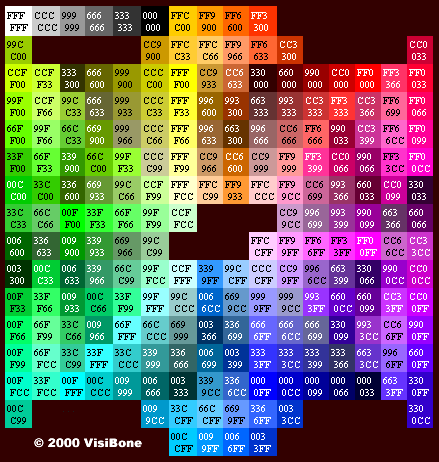
hextable.gif


A very pretty Hexadecimal chart.
 
you can get a long way with comon sence, 000000 being black, 888888 being some gray, FF0000 being red, 00FFFF teal
It's not really common sense, because not everybody understands how RGB colouring works. Also, if I remember correctly, somewhere WC3 is backwards where 000000 (or its equivalent) would be white and FFFFFF (or its equivalent) is black.

if you don't like math you could look for a Converter ofcourse :wink:
The Calculator program that comes standard with Windows may be used to convert values from decimal (our standard base 10, 0 1 2 3 4 5 6 7 8 9) to hexadecimal (base 16, 0 1 2 3 4 5 6 7 8 9 A B C D E F). When you open it, select View from the menu at the top. Select Scientific. There will be a selection that goes oHex oDec oOct oBin. The circle in front of Dec should be filled in, which means that your calculator is in decimal mode (base 10). Put in any value from 0 to 255. Click the circle in front of Hex. The calculator will change the number in the display (if you put 255, the calculator will change it to "FF"). Congratulations, you have just successfully converted a number from decimal to hexadecimal using Calculator.
 
and yea i geuss i played with the 255 thing alot. And how colors mix was something that kame up pretty late in high school

cool thanks, alway's thought the calculater was too limeted :hohum:
learned something again :thumbs_up:
 
Status
Not open for further replies.
Back
Top