
(Keeps Hive Alive)
Go Back   The Hive Workshop - A Warcraft III Modding Site > Warcraft III Tutorials > 3D Modeling Tutorials

3D Modeling Tutorials Tutorials regarding the creation, animating and editing of 3D models.
Read the Rules before posting.

Reply
 
LinkBack Thread Tools Display Modes
Old 06-10-2007, 12:55 AM   #1 (permalink)
 
WILLTHEALMIGHTY's Avatar

OMG QRAC
 
Join Date: Sep 2006
Posts: 2,279

WILLTHEALMIGHTY is a glorious beacon of light (432)WILLTHEALMIGHTY is a glorious beacon of light (432)WILLTHEALMIGHTY is a glorious beacon of light (432)WILLTHEALMIGHTY is a glorious beacon of light (432)WILLTHEALMIGHTY is a glorious beacon of light (432)WILLTHEALMIGHTY is a glorious beacon of light (432)


Making Effects in Magos

SFX in MAGOS


Here I will show you the basice knowledge of Magos and how to make special effects with it. Now, I expect you to know some basic modding knowledge, I won't talk to you about how blp's work, what alpha layers are and the like, so if you encounter something you don't know about, feel free to search for a definition/tutorial on it.

GETTING STARTED:
Get Magos' Model Editor.

The first time you open it, you should see a big gray screen, with a tab bar.
In this tutorial, we will make a completly new FX, with only particles, and no geosets. Then we'll move on to geosets and other things Magos can do.

Now, if there's one thing to keep in mind is:
Messing around with Magos, and generaly testing new things is perfect way to learn how it works. In fact, I suggest you always try out different combinations, so you get to know exactly what it can do.


SFX EXAMPLE 1: Random fiery explosion
Step 1:
Click on "file", then on "New"

First thing to understand is the frame system. Warcraft 3 uses a speed of 960 frames per second, don't know why.
Now go to Windows/Sequence Manager and right click in the blank screen, and then click "Create New". A new box will open, where you will see different things. Name the new sequence Birth.
NOTE: Remember, birth anims are single anims, which happen once and stop, like the Steam tank effect.

The first part (upper) is the extent section. Don't worry about it for now.
The second part (middle) has two empty fields: Start and End.
A sequence is basically animations. They start at a certain frame number and end at another. So for our sequence, we'll start it at "0", and end it at "2000" (which means roughly 2 seconds of animation). Then we're going to check "non-looping", to make sure our FX doesn't repeat uselessly. This tag shouldn't be checked for repeating anims like stand anims.
We're done with the sequence manager, now you can close it.

magoseffects-sequenceeditor.jpg

=== === === === === === === === === === === === === === ===

Step 2:
Next part is textures.
Open up the texture manager and the MPQ browser. We'll start with the MPQ browser:
Open the MPQ you want (go to file and click on the MPQ you want to open) and open up the "textures" folder. This is the folder with the most textures. Right-click one of the textures and select "use as texture". This makes sure the texture you're using is ingame, and you won't need to import anything.
However, if you need a custom texture, import it in the texture manager using "right-click/import texture".

Some very commonly used textures include (either in War3.mpq or War3x.mpq):
-cloud8x8.blp (and all other variations)
-Genericglow64.blp
-Blueglow.blp, redstar.blp and similar
-Shockwave10.blp and similar

Keep in mind both MPQ have variants of these textures, and some textures are exclusive to an MPQ.
Ok, so select Cloud8x8fire.blp, Cloud8x8.blp, shockwave10.blp and genericglow64.blp for our example.
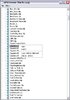
me-mpqbrowser.jpg

=== === === === === === === === === === === === === === ===

Step 3:
Here starts the real editing....
Open up the animation controler. It's easy enough to work with, I doubt I need to explain it. Then open up the node manager, again, it should be a blank page. Right-click on that blank and select "Create Particle Emmiter 2". There are other types of nodes you can create, but we'll stick to this one right now.

So you click and BAM! You have loads of different settings. Stop hyperventilating and calm down, everything will make sense soon.

First thing we'll do is set the texture parameters (left part with the scroll down thingy and filter selector):
Set the scrolly thingy to Cloud8x8fire.blp and the filter to additive.

Quote:
Here's some useful info for you, so you can better understand how MDX's work. (Thanks to RDZ for the info, but I won't list it all here, its a bit complicated...)
Filters are ways of removing those annoying parts from a texture, like the black background, or the alpha layer. These filters also apply to matrial layers, something that doesn't really habve to to with this. Here's a list of the available filters and how (I think) they work:
-Transparent: This alpha's out the alpha layer. Actually, RDZ just explained what it does... Just remember it doesn't do any fading from opaque to transparent.
-Blend: Works like Transparent, but much more useful. This DOES have some good fading. Anyways, its good for smoke, and dust effects.
-Additive: This removes the black from textures, more or less (see RDZ's post for a full explanation). When used on a regular skin, it will appear ghosty, and does somewhat the same thing to the particles. Good for fire, water, lights and a lot of other things.
-Add Alpha: Works like Additive, however not that much. I haven't experienced much with it, so I'd say you might as well stick to additive.
-Modulate: Does the opposite of Additive, as in, removes the white, and makes the texture darker. This is good for shadowy glows, or other black textures. There aren't many textures that work with this however. Oh, and remember that modulate doesn't allow for a particle to fade out (in the segments part)...
=== === === === === === === === === === === === === === === === === ===

Then we're going to look at the upper parts.
First things first:

-Visibility: controls whether the emmiter emits or not. Right now, click "animate" and you'll see something like:
Code:
0:1
This means the emmitter will be emitting at frame 0, and won't stop until its told to. (remember, 1 means that the emmiter is there, 0 means it isn't)
So the question is, how do we stop it from emmiting? Lets say we want a short burst of particles:
Code:
0:1
100:1
This means it will be only emmiting for 1/10 of a second (from frame 0 to 100), which means a short burst of said particles.
You can "animate" loads of other things this way, and not only with 1 and 0.
-Emmission rate: controls the speed at which particles are emmitted. Again this can be animated as well (doesn't have to) and if you want it to grow from a certain value to another value, simply set the setting at the bottom of the animate box to "linear" (bexier and hermite are other types, slightly more complicated).
For now we'll set it to 700, since we want it to release a lot of particles at once (it won't release 700 at once though, since the emmiting time is so short). If you have a constant emmitter, I suggest to go lower, since high values means that many particles at the same time, and some computers can't take that.
-Speed: Controls the speed at which particles travel through 3d space. Simple, no? Set this to 150.
-Variation: Controls the variation of the speed setting. I don't know exactly what the values stand for, but I think they're percentages (1 means it can vary from twice its normal speed, etc...) Experiment with it to get a hang of how it works. Set this to 0.
-Latitude: This is a bit... complicated. This controls whether particles travel directly upwards, in a cone or in a sphere. Directly upwards is the "0" value, than from there to a certain value its all about how wide the emmiting cone is, and at a certain value it becomes a whole sphere. Again, experimenting with it helps. Set this 125 (for a half-sphere).
-Width and Length: Controls the width and length of the emmitter. From there you can make emmitters go from large squares or long bands. Set this to 0 each.
!NOTE! Magos has these two fields mixed! Width ingame is actually length, and length ingame is actually width!
-Gravity: Gravity is the rate at which particles are pulled down. it works just like the real world (you do know what that is, right?). Since fire has a tendency to go up, lets se this to -35

=== === === === === === === === === === === === === === === === === ===

Now lets check out the "Flags" part (left, middle to bottom):

-Unshaded: If it is checked, particles will not be affected by ingame lighting.
-Unfogged: Tells whether fog affects the particles or no. Check this.
-Alpha Key: No idea. Don't check it.
-Line emmitter: Tells whether the particles move in a 3 directional way or 2 directional way.
-Sort Primitive Far Z's: Don't really know, supposedly it fixes the "which particle is in front" problem... Check it (or don't, doesn't matter much)
-Model space: Lets say we put this on a unit, well when its moving, this tells if the particles move with it, or stay behind.
-XYQuad: Allows for Fllat particles. NOTE: Doesn't work ingame, unfortunatly, since this is one of the most useful things yet. But you can always start from an already made one (from a blizzard model for example).
-Squirt: I think this makes the particles face where its going.
-Head and Tail: Particles have two parts, the head and the tail. The head is just the texture, and the tail is a trail left behind the particles. The length is controled by the Tail length setting, and unfortunatly, tails aren't shown in the Model Editor, so the only way you can see the texture is with Head checked. Check Head only for our example. Actually, I hate to make the reference, but a particle is kinda like a spermatozoon.

=== === === === === === === === === === === === === === === === === ===

Now we'll take care of the bottom part...

-Rows and columns: If you had bothered opening cloud8x8fire.blp, you'd see that its composed of 64 little fire images disposed in a grid. So these two field are exactly for that: we tell the editor that the texture is divided in a grid of 8 rows and 8 columns. You'll soon understand how we can use that to our advantage.
-Life Span: Tells the editor how long we want the particle to live. Set this to 0.7.
-Tail length: This is the length of the tail.
-Priority Plane: Let say I have two emmiters, one of smoke and the other fire. I want the fire to always appear on top of the smoke, so I'll set Priority plane to higher than the other ammiters priority plane value. Set this to 1.
-Replaceable ID: Used for team colored particles. Set this to 0.
-Time: Notice the "segments" in the middle of the window. Every particle goes from segment 1 to segment 2 to segment 3 gradually. Time determines what percentage of the life span value is spent going from 1 to 2. So if set to 0.5, this means S1 will go to S2 at the same speed S2 will go to S3. If its 0.1, then S1 will go really rapidly to S2, but very slowly to S3 and etcetera. Set this to 0.2 since we want our fire to rapidly pop into existence.

=== === === === === === === === === === === === === === === === === ===

Lets look at the part right over the one we just took care of...

You'll notice 4 little boxes with three fields each. Remember that the 8X8 texture is like a grid? Well here we can choose whether we want to cycle through the mutiple images, or choose one in particular. I THINK the life span section controls the span of time between segment 1 and 2, while decay controls the span between S2 and S3.
So we want our fire to always be animated, but we don't have a tail so we don't need to modify it, set your fields to this:

me-animatingtextures.jpg

=== === === === === === === === === === === === === === === === === ===

Alright next step is to edit the segments... Set the colors to anything you like, it really doesn't matter what you want.
NOTE: remember alpha is the transparency of the particle, meaning 0 means invisible particle, and 255 means completly visible.
But lets say we want our fire to suddenly grow into existence, but then fade away slowly.

Quote:
IMPORTANT!
Two things can make a computer lag with particles, too many particles and giant particles. So always make sure your particles aren't too big, and that you don't have that many. Usually, 1000 particles is huge, even if they are small. Its important to have a low "lag factor" so your effect can be used more than once at a time without killing someone's computer.
You should get something like this:

me-segments.jpg

=== === === === === === === === === === === === === === === === === ===

WE'RE DONE!

Exit the node editor.
Ok, before viewing your model, do some things:
-Go to the tab "EDIT" on the toolbar, click on properties and go check the "debug messages" flag. This will show stats on the corner of your screen, where you can see the amount of particles, the zoom distance and etc... You can also swith on the "use ground texture" to see where the ground is on your model.
-Zoom out until you get to a distance of about 1600. If you are full screen, 1600 is the average ingame camera distance. This is to make sure your model is of a decent size.
-Go to the animation controller, and pick out your birth anim. Play it, enjoy your FX.


What? Don't find it too amazing? Don't worry, I plan to make new tutorials, explaining other Model editor functions, so you can know exactly how it works and become a l33t modeller.
__________________

Last edited by WILLTHEALMIGHTY; 06-22-2007 at 03:27 PM.
WILLTHEALMIGHTY is offline   Reply With Quote
Old 06-10-2007, 01:19 AM   #2 (permalink)
 
Chriz.'s Avatar

Animator
 
Join Date: Mar 2006
Posts: 3,195

Chriz. is a splendid one to behold (784)Chriz. is a splendid one to behold (784)Chriz. is a splendid one to behold (784)

Respected User: This user has been given the respected user award. Modelling Competition #1 Winner: Pirate Pack 

I look forward to this.
__________________
Personal art page; Resources I've animated; Personal animation thread; War of the Three Hammers; Vast Graphics
Itchy itchy Scott came ugly face so killed him. Tasty. - Resident Evil 1
Chriz. is offline   Reply With Quote
Old 06-14-2007, 02:14 AM   #3 (permalink)
 
WILLTHEALMIGHTY's Avatar

OMG QRAC
 
Join Date: Sep 2006
Posts: 2,279

WILLTHEALMIGHTY is a glorious beacon of light (432)WILLTHEALMIGHTY is a glorious beacon of light (432)WILLTHEALMIGHTY is a glorious beacon of light (432)WILLTHEALMIGHTY is a glorious beacon of light (432)WILLTHEALMIGHTY is a glorious beacon of light (432)WILLTHEALMIGHTY is a glorious beacon of light (432)


Done, I guess.
__________________
WILLTHEALMIGHTY is offline   Reply With Quote
Old 06-14-2007, 03:02 AM   #4 (permalink)
Overall Site Manager
 
Wolverabid's Avatar

 
Join Date: Oct 2006
Posts: 8,756

Wolverabid has much of which to be proud (1208)Wolverabid has much of which to be proud (1208)

Respected User: This user has been given the respected user award. User of the Year: 2007 

Making Effects in Magos looks really good WILL. This document is sure to help a great many aspiring modelers.

There a couple of minor spelling errors, I can fix them with your permission.

I would like Chriz and Werewulf to comment on the tutorial before its approved. You might consider sending them (or RDZ and TDR as well) a friendy PM to ask for their input: our best modelers should review this.
Wolverabid is offline   Reply With Quote
Old 06-14-2007, 03:17 PM   #5 (permalink)
 
WILLTHEALMIGHTY's Avatar

OMG QRAC
 
Join Date: Sep 2006
Posts: 2,279

WILLTHEALMIGHTY is a glorious beacon of light (432)WILLTHEALMIGHTY is a glorious beacon of light (432)WILLTHEALMIGHTY is a glorious beacon of light (432)WILLTHEALMIGHTY is a glorious beacon of light (432)WILLTHEALMIGHTY is a glorious beacon of light (432)WILLTHEALMIGHTY is a glorious beacon of light (432)


Quote:
Originally Posted by Wolverabid View Post
Making Effects in Magos looks really good WILL. This document is sure to help a great many aspiring modelers.

There a couple of minor spelling errors, I can fix them with your permission.

I would like Chriz and Werewulf to comment on the tutorial before its approved. You might consider sending them (or RDZ and TDR as well) a friendy PM to ask for their input: our best modelers should review this.
Go ahead and fix them if you want.

I'll PM them right away.
__________________
WILLTHEALMIGHTY is offline   Reply With Quote
Old 06-14-2007, 03:55 PM   #6 (permalink)
 
Rao Dao Zao's Avatar

New Romantic
 
Join Date: Mar 2004
Posts: 1,267

Rao Dao Zao is a name known to all (610)

Respected User: This user has been given the respected user award. 

Dude, WC3 is on 1000 fps. Models are, at any rate.

You might want to mention about the 'filters' on the MPQ browser.

The MPQ browser has branches, not tabs. A minor point, but potentially confusing to nublets.

Filtermodes:
Transparent only has a setting of 0 or 1 (or about 0.99 or something, but it's negligible); basically, it won't do any nice fading work in-between -- things are there or not.
Blend is the same, except it goes all the way in-between (it sometimes has Z-order issues, but these shouldn't matter with particles).
Additive is exactly what it says on the tin -- it adds the pixel colours together. Black is, of course, 0, 0, 0, so 0 plus anything is anything, making black invisible. All other colours go closer to white, where things become 'fully' opaque.
Add Alpha is like additive, but it takes account of the alpha channel in the normal manner too (not sure about this one, though, never used it).
Modulate isn't the opposite of additive -- but as far as I know, it is similar. It's a multiplication rather than addition. Since all colours are stored between 0 and 1 rather than 0 and 255, a multiplication will take colours closer to 0 -- black.

Flags:
Unshaded means the particle will not be affected by in-game lighting -- it'll be the same exact colours as the texture (bar filtermodes etc). Useful for fire and such, or modulated emitters (unpleastant purple stains instead of black clouds being one thing that got me recently, when 'unshaded' was not checked).
Unfogged: perhaps note that it's the terrain fog, and not the fog of war.
SortPrimsFarZ: I believe this tag is suppose to sort the Z-order problems I mentioned earlier (the game being unable to determine what is in front of what), but in all my experience it has had no effect at all (it has been rumoured that the tag is in fact broken or unimplemented).
XYQuad does actually work; you can see it in the Spell Breaker's feedback emitter. However, when creating emitters from scratch, they fail. I am not entirely sure why; but butchering an existing XYQuad emitter rather than starting from zero makes them work perfectly.
Also note that 'head' must be checked for the particle to be visible at all in Magos'.

Talking about segments, you should perhaps note that the transparency doesn't fully work with some filtermodes; notably None, Transparent and Modulate. With modulate, however, there are some specific cloud textures with built-in fade-outs.

Hmm hmm hmm, hope that helps. Learned a few things myself reading it over, so you're doing good.
__________________
Rao Dao Zao is offline   Reply With Quote
Old 06-14-2007, 05:32 PM   #7 (permalink)
 
WILLTHEALMIGHTY's Avatar

OMG QRAC
 
Join Date: Sep 2006
Posts: 2,279

WILLTHEALMIGHTY is a glorious beacon of light (432)WILLTHEALMIGHTY is a glorious beacon of light (432)WILLTHEALMIGHTY is a glorious beacon of light (432)WILLTHEALMIGHTY is a glorious beacon of light (432)WILLTHEALMIGHTY is a glorious beacon of light (432)WILLTHEALMIGHTY is a glorious beacon of light (432)


Actually, it's 960 fps...
Magos says so in his tutorial for GMAX... And when you make a sequence of 2000 frames, in WE Previewer you can see it's lower than 2 seconds.

Anyways, thanks for clearing up some things. I updated the tutorial with some of that information. I didn't include it all, since new users will probably not understand that much, and besides they can go see your post.
__________________
WILLTHEALMIGHTY is offline   Reply With Quote
Old 07-04-2007, 03:42 PM   #8 (permalink)
 
HappyTauren's Avatar

Banned
 
Join Date: Nov 2006
Posts: 6,598

HappyTauren has much of which to be proud (991)HappyTauren has much of which to be proud (991)HappyTauren has much of which to be proud (991)HappyTauren has much of which to be proud (991)HappyTauren has much of which to be proud (991)HappyTauren has much of which to be proud (991)


I think it is dependant on exporter, i mean modeling program, because in ms3d, 1 keyframe == 0.041 seconds or something
HappyTauren is offline   Reply With Quote
Old 07-09-2007, 04:13 PM   #9 (permalink)
Site & Art Director

Administrator
 
Join Date: Jan 2006
Posts: 1,821

Archian has much of which to be proud (1239)Archian has much of which to be proud (1239)Archian has much of which to be proud (1239)

PayPal Donor: This user has donated to The Hive. User of the Year: 2006 

Quite useful, I approve.
Archian is offline   Reply With Quote
Old 07-10-2007, 10:19 PM   #10 (permalink)
 
PurgeandFire111's Avatar

User Title
 
Join Date: Nov 2006
Posts: 1,059

PurgeandFire111 is a jewel in the rough (153)


Awesome. I created a pretty nice effect with this. IMO, it looks best with shockwave10.blp. Unless I did something wrong.

Anyways, sweet tutorial.

+Rep!
__________________
Vote For The Hive Workshop!
Funny but the TRUTH! :
Quote:
Originally Posted by Sopho
Unprotecting maps is not right its like crime and YOU GO MAKE YOUR OWN MAP AND BE HAPPY! Don't be gay n00b!

1. You can if it is yours but you should not if it is not. It is like stealing information and using it as if it is your own. It si gay stuff and people who unprotect maps are gay themselves.
PurgeandFire111 is offline   Reply With Quote
Old 10-07-2007, 09:50 AM   #11 (permalink)
 
CoffinPuppet's Avatar

Model Mutilator \m/
 
Join Date: Oct 2007
Posts: 57

CoffinPuppet has little to show at this moment (4)


Quote:
Originally Posted by PurgeandFire111 View Post
Awesome. I created a pretty nice effect with this. IMO, it looks best with shockwave10.blp. Unless I did something wrong.

Anyways, sweet tutorial.

+Rep!
Jaha ^^
I just started Modelling, and This Tutorial realy helped me out
+Rep =)
CoffinPuppet is offline   Reply With Quote
Old 03-23-2008, 04:32 AM   #12 (permalink)
 
NatDis's Avatar

Fury of Nature......Maybe
 
Join Date: Jan 2008
Posts: 181

NatDis has little to show at this moment (11)NatDis has little to show at this moment (11)


You mentioned that the squirt flag makes particles face where they go but it is wrong. It doesn't have any effect in W3ME but in the game, it spawns the particles at the same time. Like the blast particle.
__________________
It's raining way too sparsely here for my liking.
...
I wish someone with the necessary knowledge and skill would change the renderer of Warcraft III to a more modern one. One that is optimized for DX9c, newer graphics card, and has HDR lighting, Antialiasing, proper shadows, reflections, and refractions, and specular lighting.....I wish.....
NatDis is offline   Reply With Quote
Old 05-17-2008, 02:31 AM   #13 (permalink)
 
varsaigen's Avatar

Lord of Shakuras
 
Join Date: Jan 2008
Posts: 1,594

varsaigen has a spectacular aura about (140)varsaigen has a spectacular aura about (140)varsaigen has a spectacular aura about (140)varsaigen has a spectacular aura about (140)


wow. this is geat. Just as I needed to update my model too! Thx!
__________________
Quote:
[15-27-48] Masiah eats varsaigen.
[15-28-00] varsaigen rips apart Masiah's liver
[15-28-09] Masiah: Oh, not again...
varsaigen is online now   Reply With Quote
Old 05-17-2008, 11:39 AM   #14 (permalink)
 
DevineArmy's Avatar

Them stole te ma repzorz!
 
Join Date: Sep 2007
Posts: 1,630

DevineArmy is a jewel in the rough (205)DevineArmy is a jewel in the rough (205)


this is a nice, good, awesome good tutorial for model editing. Its an excelent addition to the hive's tutorials.
+rep for this one
nice
__________________
Special thanks to ralle for my signature.
DevineArmy is offline   Reply With Quote
Old 05-18-2008, 02:53 AM   #15 (permalink)
 
varsaigen's Avatar

Lord of Shakuras
 
Join Date: Jan 2008
Posts: 1,594

varsaigen has a spectacular aura about (140)varsaigen has a spectacular aura about (140)varsaigen has a spectacular aura about (140)varsaigen has a spectacular aura about (140)


One question, how do i aply a blazing fire to a model and make dure it lasts until death?
__________________
Quote:
[15-27-48] Masiah eats varsaigen.
[15-28-00] varsaigen rips apart Masiah's liver
[15-28-09] Masiah: Oh, not again...
varsaigen is online now   Reply With Quote
Reply

Bookmarks

Thread Tools
Display Modes

Posting Rules
You may not post new threads
You may not post replies
You may not post attachments
You may not edit your posts

BB code is On
Smilies are On
[IMG] code is On
HTML code is Off
Trackbacks are On
Pingbacks are On
Refbacks are On
Forum Jump