

- Joined
- Mar 31, 2004
- Messages
- 860

In this tutorial I will be using 3DS Max 5, Wordpad, Yobgul's File converter, and although it isn't required, Image Viewer 2 to admire my results outside Max.
Firstly, decide what you want to merge and then plan to isolate the various models and their parts.
I will be taking a Troll trapper model, and giving it an Axe, whilst removing its existing weapons. Then I will go on to change its animations in a further tutorial.
Stage 1. Getting me a big rusty Axe!
Load up 3DS Max.
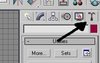
Click on the utilities button:
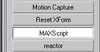
The scroll down and select MAXscript:
Find the script the MDX Importer/Exporter script by KMK. Attached if you do not have this:
DOWNLOAD HERE
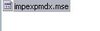
Then you will have to select it from the drop down box:
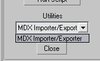
And you will be presented with the script's functions:
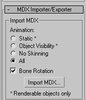
Select them as so:
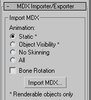
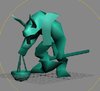
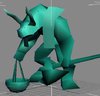
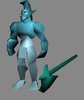
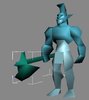
Then you can click on import and find the mdx (model) you want to import and edit/use. Here is my Spirit Walker who's Axe I'll be stealing:
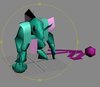
Isn't he cute? We'll see about that.
Notice the model is made up of random coloured meshes. Delete all the meshes that aren't the same colour as the object you want to steal/edit. In this case, the Axe. Just click on them and press delete.
Don't worry about deleting the other bits, you are only going to use the data for the Axe when you're done with this stage.
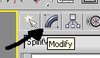
Now, select this mesh, and click on modify:
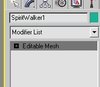
Expand the editable mesh by clicking the small +button:
And then select Vertex:
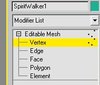
Now, your model should be covered in small blue dots, which are its vertices.
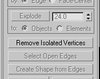
Now you want to start deleting all the parts of mesh that you do not want. It may be easier/quicker to use polygon/element to select and delete these areas, instead of vertex. Also, make sure you click on remove isolated vertices:
And you should end up with just your required object, which in this case is a Big Axe!
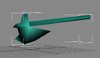
Now, export the model using 'File > Export'. Export as .3ds for now, as you will need to position the Axe on the next model before making it a .mdx.
Firstly, decide what you want to merge and then plan to isolate the various models and their parts.
I will be taking a Troll trapper model, and giving it an Axe, whilst removing its existing weapons. Then I will go on to change its animations in a further tutorial.
Stage 1. Getting me a big rusty Axe!
Load up 3DS Max.
Click on the utilities button:
The scroll down and select MAXscript:
Find the script the MDX Importer/Exporter script by KMK. Attached if you do not have this:
DOWNLOAD HERE
Then you will have to select it from the drop down box:
And you will be presented with the script's functions:
Select them as so:
Then you can click on import and find the mdx (model) you want to import and edit/use. Here is my Spirit Walker who's Axe I'll be stealing:
Isn't he cute? We'll see about that.
Notice the model is made up of random coloured meshes. Delete all the meshes that aren't the same colour as the object you want to steal/edit. In this case, the Axe. Just click on them and press delete.
Don't worry about deleting the other bits, you are only going to use the data for the Axe when you're done with this stage.
Now, select this mesh, and click on modify:
Expand the editable mesh by clicking the small +button:
And then select Vertex:
Now, your model should be covered in small blue dots, which are its vertices.
Now you want to start deleting all the parts of mesh that you do not want. It may be easier/quicker to use polygon/element to select and delete these areas, instead of vertex. Also, make sure you click on remove isolated vertices:
And you should end up with just your required object, which in this case is a Big Axe!
Now, export the model using 'File > Export'. Export as .3ds for now, as you will need to position the Axe on the next model before making it a .mdx.
Last edited by a moderator:
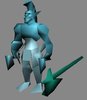




 I Made A Donut Using This!


