
Deleted member 126647
D
Deleted member 126647
This is a tutorial which will show you how to make your unit able to be team colored, using 3DsMax 5, and the Warcraft III Art Tools.
Team Color in 3DsMax 5
Of course a texture that supports alpha is needed, so that your team color will be visible through the texture. I assume that you already have this part done, and will now explain how to apply it, along with team color, to your model.

A little helpful hint: While in the Warcraft III Previewer, if you hit the [ or ] keys, you can scroll through all the team colors, and make sure it looks how you want it to.
Chriz. - Your friendly animation moderator.
Team Color in 3DsMax 5
Of course a texture that supports alpha is needed, so that your team color will be visible through the texture. I assume that you already have this part done, and will now explain how to apply it, along with team color, to your model.
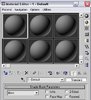
- Open the Material Editor and click on the button that says "Standard" on it.
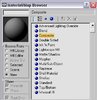
- Double click on "Composite."
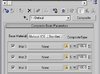
- Click on the base material.
- Make this material "Warcraft III" type.
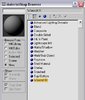
- From the second drop-down menu, choose "Team Color."

- Click on the small button nest to "Diffuse" and choose a texture (which one doesn't matter, this is just required.)
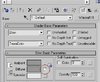
- Go back to the default material as shown, and choose the first material under the base material.

- Make this material "Warcraft III" type.
- Go to "Extended Parameters" and select "Full Alpha."
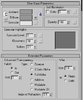
- Click on the small button nest to "Diffuse."
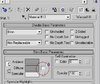
- Choose "Bitmap" and select your texture (which should of course have alpha in the places you want team color to appear.)
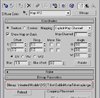
A little helpful hint: While in the Warcraft III Previewer, if you hit the [ or ] keys, you can scroll through all the team colors, and make sure it looks how you want it to.
Chriz. - Your friendly animation moderator.
Last edited by a moderator:


